
Selling on WhatsApp is simple. A customer messages you, you agree on the order, you send your PayNow number, and they pay. If you have a few orders a week, that system works.
But what happens during your seasonal surge? Say it’s Xmas and you are taking Christmas log cake orders. You now have forty chats open. Some customers send “ok i paynow already” with a screenshot. Some don’t. Your bank app shows a list of credits, and most of them say nothing but a name. Which $68 was Mrs. Tan’s chocolate log, and which was the office order that’s still waiting for its finance team?
Chat is good at taking orders, but bad at tracking payments. And poor reconciliation can create mistakes and lost profits. So here is how to add just enough structure to a WhatsApp shop that every payment can be matched to an order.
Set Up the Chat Like a Shop
If you are selling from your personal WhatsApp, switch to the free WhatsApp Business app. It gives you a business profile, a catalogue where you can show products and set prices, and greeting and away messages that reply when a customer starts a chat or messages you after hours.
The catalogue saves you from typing out your menu and prices every time someone asks “how much?”. The away message stops a late-night enquiry from going cold before you wake up.
Btw, the name on your WhatsApp profile is not the name your customer sees when they pay. If you collect PayNow to your mobile number, their banking app shows your registered name (partly masked). Tell customers what to expect, or use a UEN, which shows your registered business name instead.
Confirm Every Order in the Same Format
Before you ask for money, send one message that confirms the order. Use the same format every time, and save it as a template you can copy:
Order XMAS-031
1 x Chocolate log cake (1kg): $58.00
Delivery to Tampines: $10.00
Total: $68.00
Delivery: 19 Dec, 2pm to 5pm
The customer can check it and correct it before paying, which saves you a refund later.
But the order number is the important part. It becomes the PayNow reference, so it is the one thing that will connect this chat to a line on your bank statement. Keep it short and simple, like a prefix and a running number.
Send a Payment Link, Not Just Your Number
There are three ways to ask for payment in a chat:
[MOST BASIC] “Can you PayNow to this number?”. This is your PayNow mobile number or a static QR. The customer types in the amount themselves. But, they will usually leave the reference blank or type their own name. This is how you end up with forty unlabelled credits.
[BETTER] Attach a PayNow QR code image. Generate a QR code with the amount and the order number inside, then send the image. This works, but your customer has to save the image and scan it from their gallery.
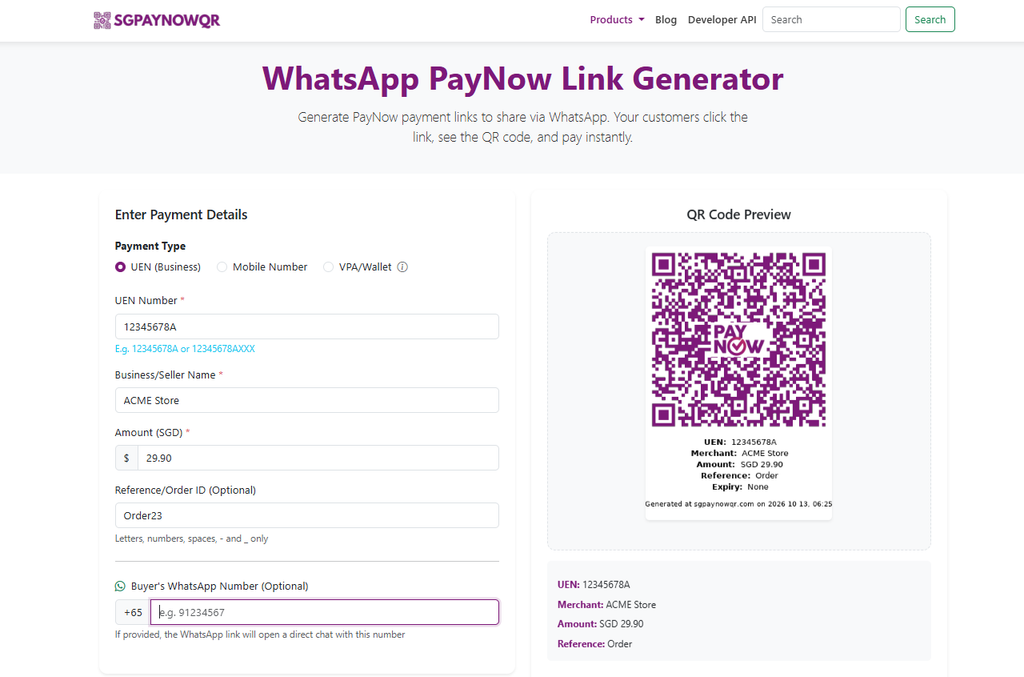
[BEST] A WhatsApp PayNow link. Our free WhatsApp PayNow link generator builds the payment request and the message for you. Fill in:
- Payment type: your UEN, your mobile number, or a VPA/wallet address.
- Business or seller name, and the amount.
- Reference: your order number, such as XMAS-031.
- Buyer’s WhatsApp number (optional). Enter it, and the button opens a chat with that customer directly.
Then tap Send via WhatsApp. WhatsApp opens with the message already written:
You received a PayNow payment request from Golden Crust Bakes
Please PayNow to:
UEN: 12345678A
Amount: SGD 68.00
Reference: XMAS-031You can also make payment by scanning the PayNow QR Code at the link below:
followed by the payment link. If you’d rather paste it into a chat yourself, use Copy Payment Link instead.
What Your Customer Sees
The link opens a payment page with a PayNow QR code, and the payment details underneath: who they are paying, the amount, and the reference. Each detail has a copy button, so a customer who prefers to type the transfer into their banking app can do that too.
A customer reading on their phone can’t scan their own screen. So the page has a Save QR Code button, and they can scan the saved image from their gallery in their banking app. If they have not done that before, this is how to scan a QR code on your own phone.
When they scan, three things are already done for them:
- The amount is filled in and locked. They can’t key in $6.80 by mistake, or round it down.
- The reference is filled in. XMAS-031 travels with the payment, without the customer typing anything.
- It does not expire. A customer who says “I’ll pay tonight” can open the same link tonight.
Check Your Bank, Not the Screenshot
Once you have shared the payment link, a customer may send you a screenshot of the payment. But don’t accept it as proof. Screenshots are easy to fake, and ScamShield warns that scammers send sellers fake proof of payment. Its advice is plain: “As sellers, always verify that payment has been received before delivering any goods or services.”
So open your banking app and look for the transaction. This is where the order number pays off. Look down the list for XMAS-031, and you know exactly which order is paid. A credit that matches no order number is the one to ask about.
We go through the other checks in is PayNow safe?, and the tricks scammers use on sellers in 8 dangerous PayNow scams.
Deliver, and Send an Invoice When Asked
When the payment is in, reply in the same chat: “Payment received for XMAS-031, see you on the 19th between 2pm and 5pm.” Now the chat holds the whole order, from the enquiry to the delivery slot, and your customer has the confirmation without having to ask.
Usually, that’s all a WhatsApp customer needs. But if one is claiming the cake back from their company, or their office is paying, they will ask for a document. That’s when you send a PayNow invoice with a QR code instead, using the same order number.

When WhatsApp Orders Outgrow the Chat
The WhatsApp PayNow link does not keep records. Nothing is stored on our servers, because the payment details travel inside the link itself. And it does not know when a customer has paid. You still match each order to a credit in your banking app yourself.
At ten orders a week, that takes a few minutes. At a hundred, it becomes a job of its own. These are the signs you have reached that point:
- You keep a spreadsheet just to know who has paid.
- Customers ask for the menu or price list more often than they place orders.
- Your regulars want to order at 2am without waiting for you to reply.
Then you have two ways forward. Build a simple own store, where customers can browse and order at any hour, using PayNow on WooCommerce and our WooCommerce plugin. Or, if you already have an order system, generate the same PayNow QR codes automatically with our PayNow QR code API.
Try it Free
The WhatsApp PayNow link generator is free and needs no sign-up. Use it on your next order, with the order number as the reference, and see how much easier your bank statement is to read.